
一.SSL Certificate Purchase Steps.
1.Customer Dashboard -> Purchase Service -> Domain and Website -> SSL Certificate -> Choose the desired product.
2.Select the desired product and make the payment.
3.Go to the "Domain and Website" section in the product services, select "SSL Certificate," and find the recently ordered certificate. Open the product for further details.
The purchase process is completed at this stage, but further certificate verification is required.
二.Certificate verification methods
The certificate commonly uses three verification methods: email verification, DNS verification, and HTTP verification.
Customers can choose the verification method according to their needs.
1.Email verification
Fill in the Domain, select the DCV method, click Save, and then Submit.
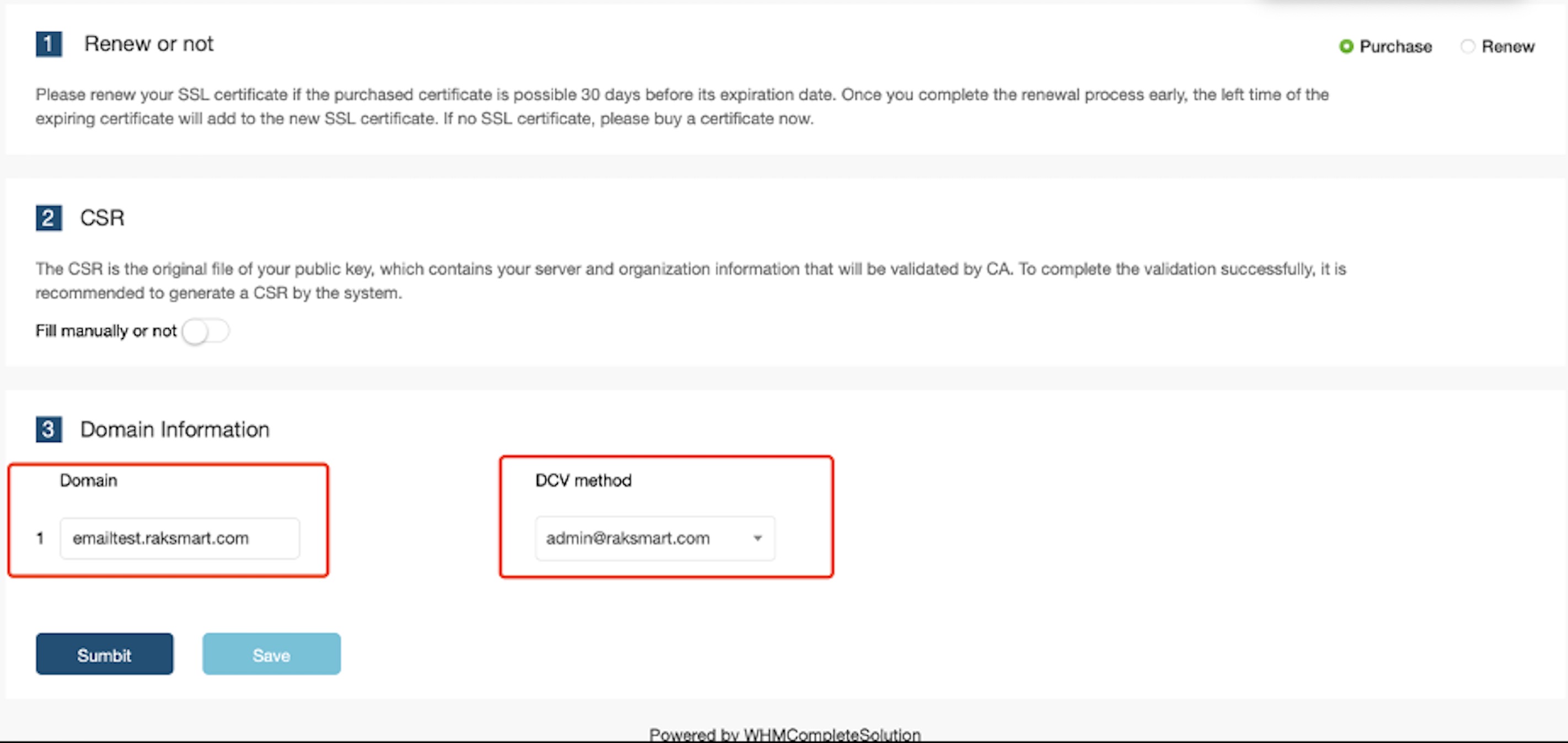
After confirming the page, you will be redirected to the following screenshot.
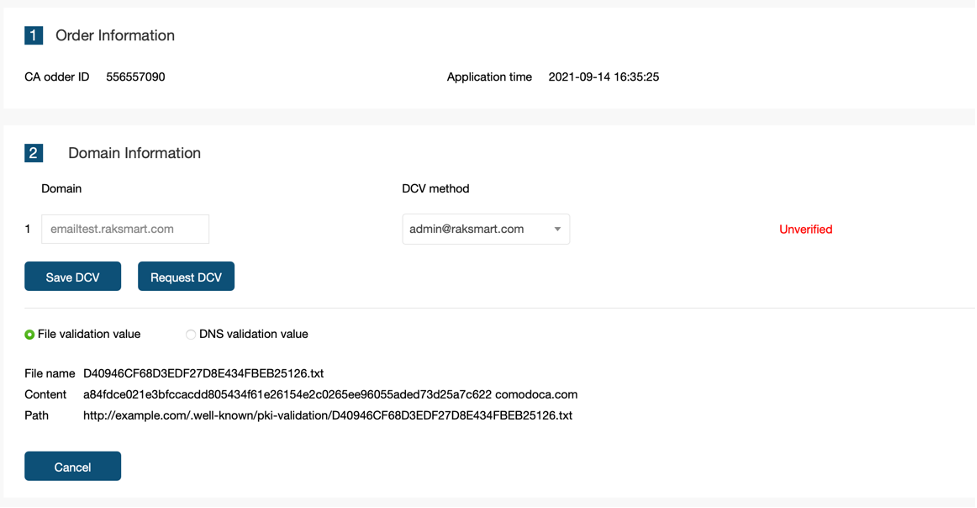
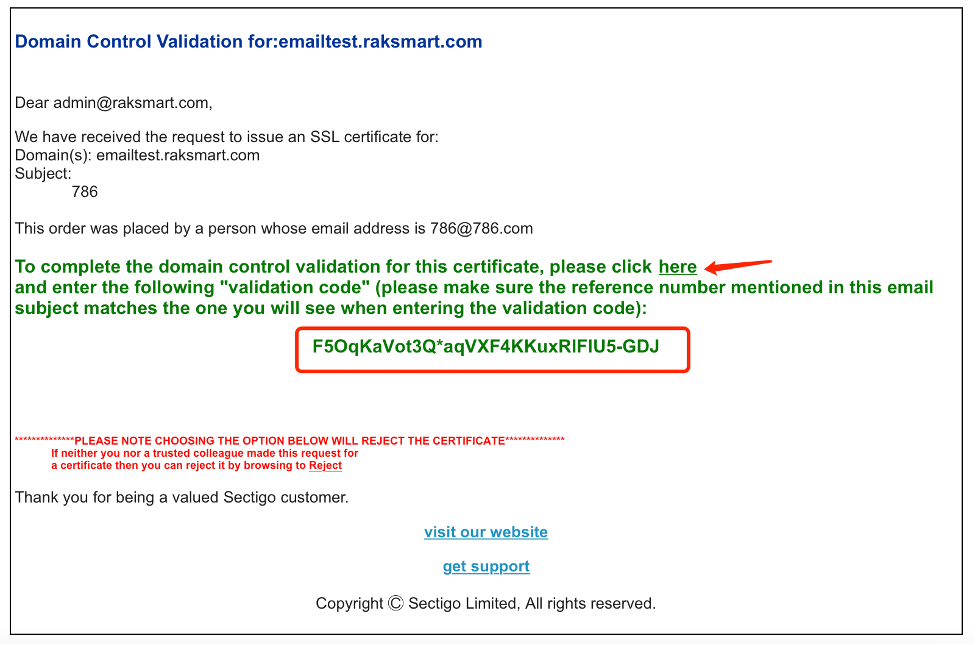
By selecting the email verification method, you will receive an email (to the email address provided during the purchase process).
Please copy the code within the red box from the received email and click on the "here" link.
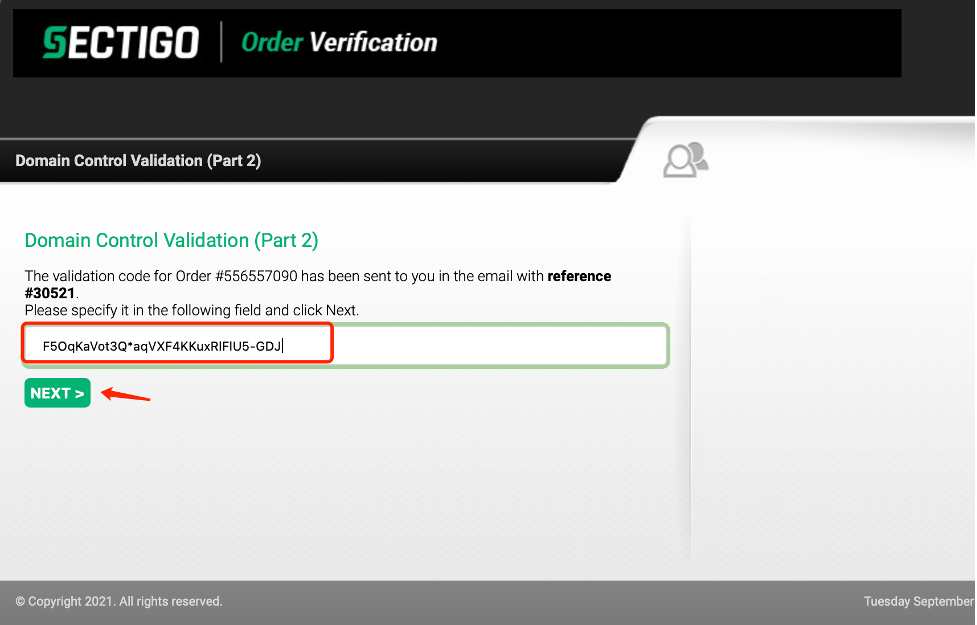
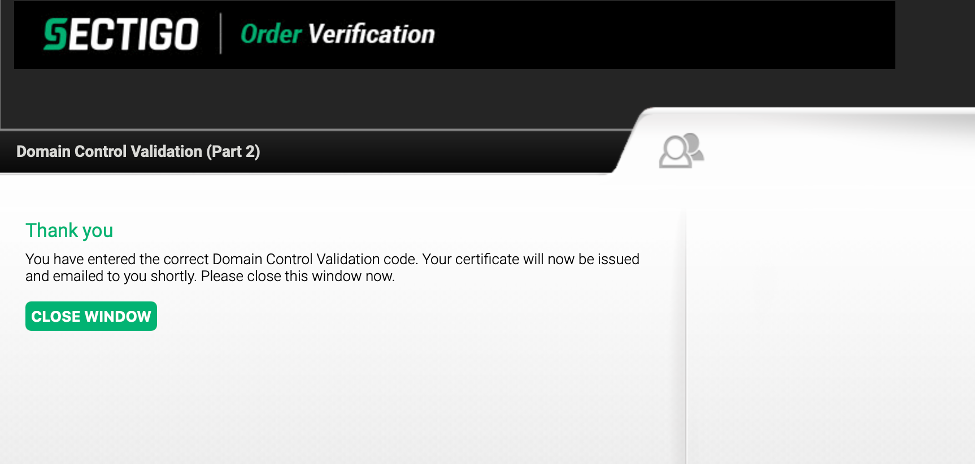
After opening the link, enter the code and click "Next" to complete the email authentication process.
2.DNS verification
After selecting the DNS validation method, the page will appear as shown in the following image.
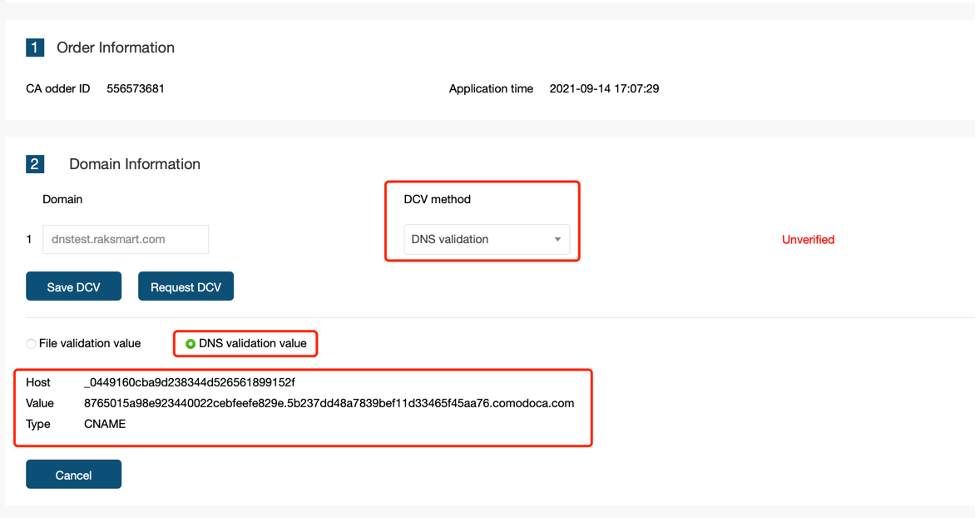
According to the information provided, fill in the Host and Value fields in your DNS server, and select CNAME.
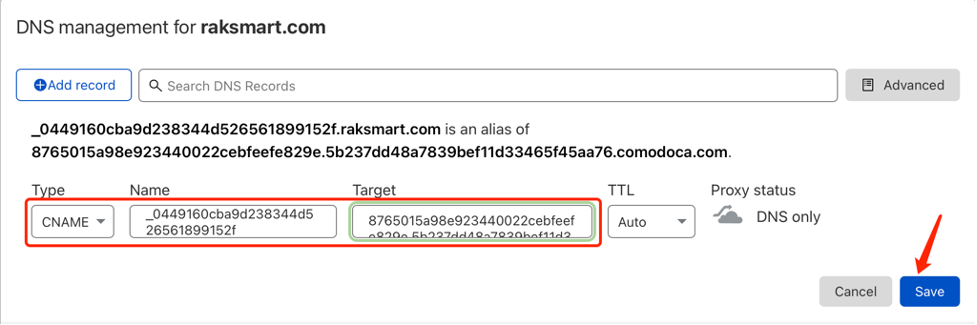
After completing the process, click Save and wait for the changes to take effect.
3.HTTP Verification
According to the selected HTTP verification method, the screenshot will provide instructions on how to perform the verification.
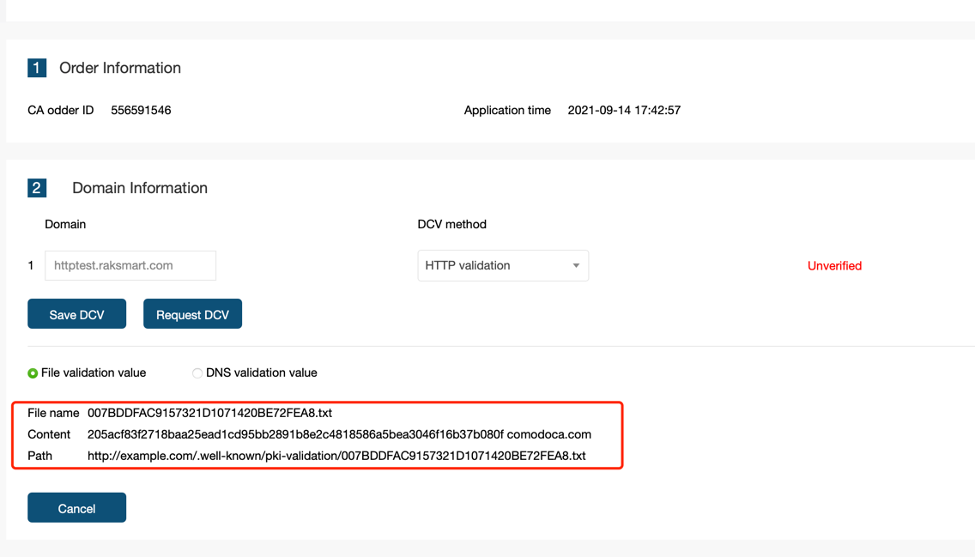
To verify using the HTTP method, you need to create a file named "007BDDFAC9157321D1071420BE72FEA8.txt" inside the "/.well-known/pki-validation" directory. The content of the file should be "205acf83f2718baa25ead1cd95bb2891b8e2c4818586a5bea3046f16b37b080f comodoca.com".
Once the file is created, you can verify it by accessing the following link (note that it may take some time for the verification to complete): http://example.com/.well-known/pkivalidation/007BDDFAC9157321D1071420BE72FEA8.txt
example.com(You need to replace "example.com" with your own website.)
The detailed operations in the service are as follows:
root@C20210915137000:/var/www/html# mkdir -p .wellknown/pki-validation/
root@C20210915137000:/var/www/html# cd .well-known/pkivalidation
root@C20210915137000:/var/www/html/.well-known/pkivalidation# vi 007BDDFAC9157321D1071420BE72FEA8.txt

root@C20210915137000:/var/www/html/.well-known/pkivalidation# /etc/init.d/apache2 restart

Test after adding DNS.
After configuring it on the machine, test the webpage http://example.com/.wellknown/pki-validation/007BDDFAC9157321D1071420BE72FEA8.txt

It opens successfully. Just wait for it to take effect.
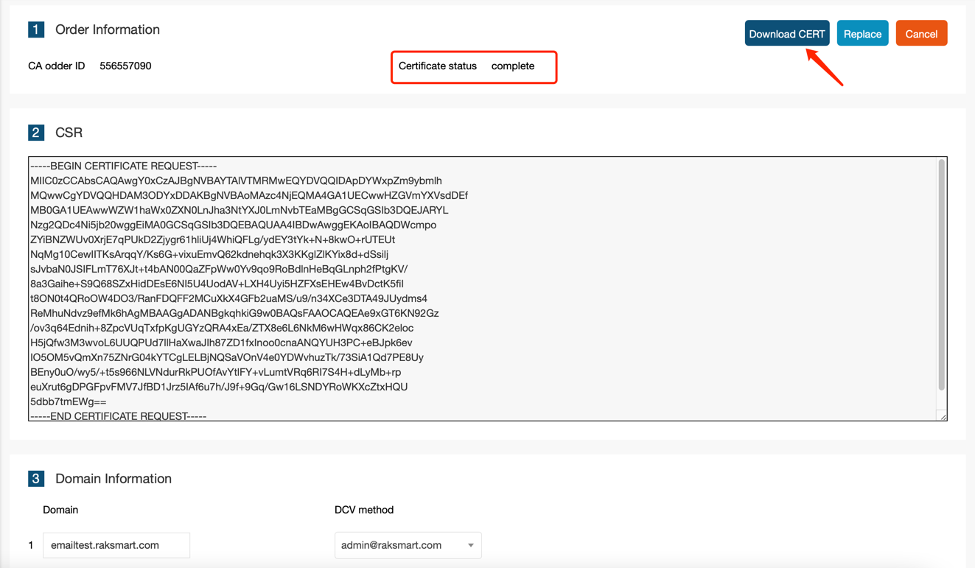
After completing the final verification step, refresh the order page, and it will show that the verification is complete. You can then download the certificate to your local machine.
Customers can choose based on their deployed web service. Apache and Nginx are commonly used for Linux web services. IIS is used for Windows web services. Tomcat is used for Java-based web services.
