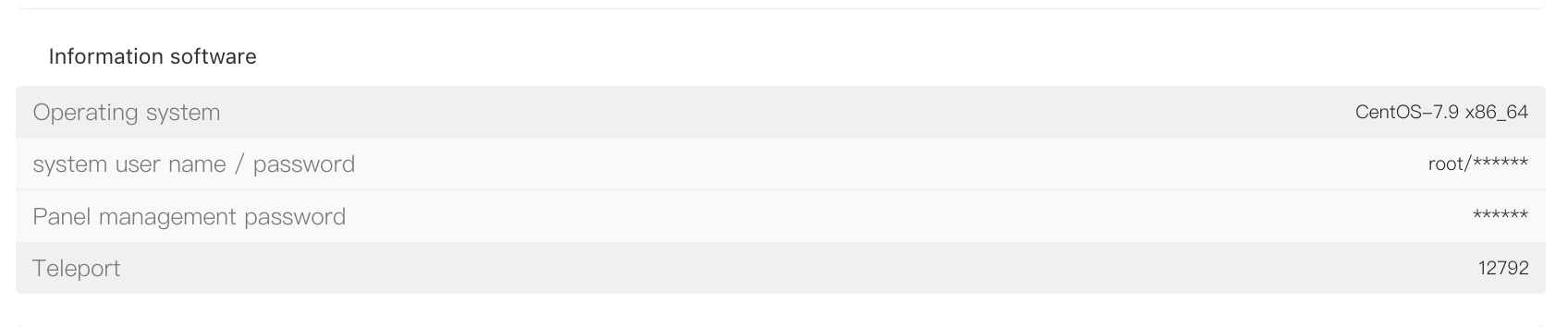
When you forget the server administrator password (Administrator/root) or need to reset it to improve security, you can use the "Crack the code" feature in the control panel to quickly reset the password.
I. Access Path
Log in to the platform and go to the "Customer Center".
Under "My Orders", click "Dedicated".
Alternatively, go to "Product Management", click "Dedicated", and filter the server list by region and status.
In the product list, locate the target server and open the "Product Details" page.
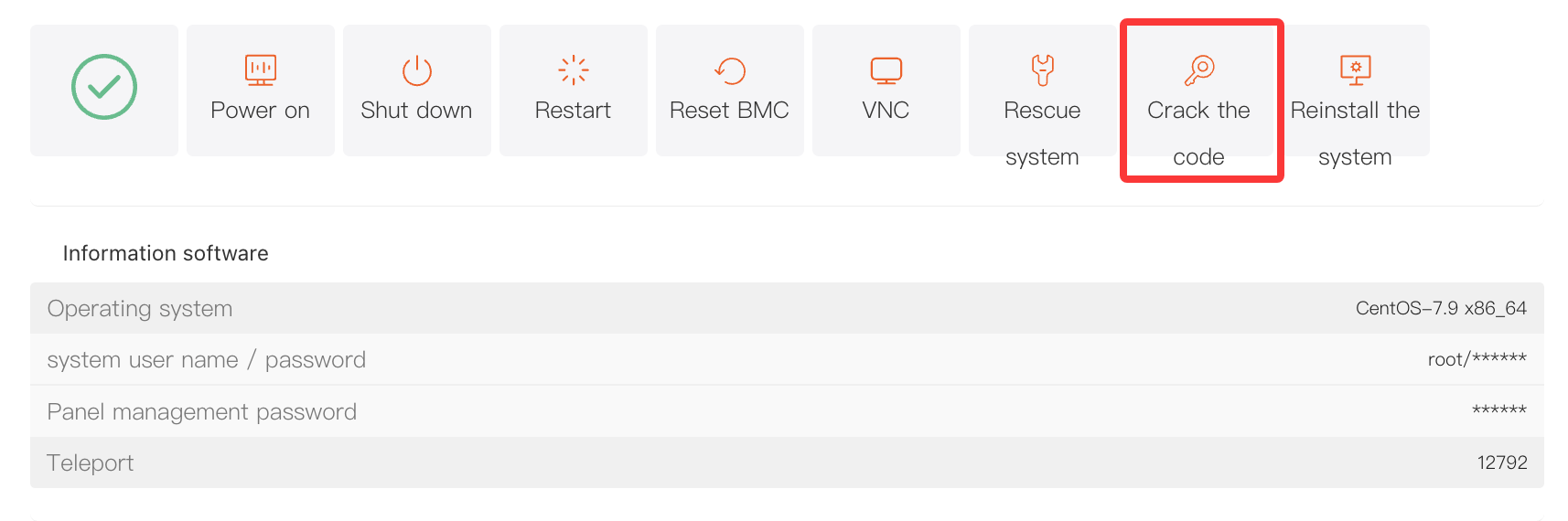
Under the "Server Information" tab, find and click "Crack the code" to open the password reset window.
II. Steps
1. Reset the Default Administrator Password
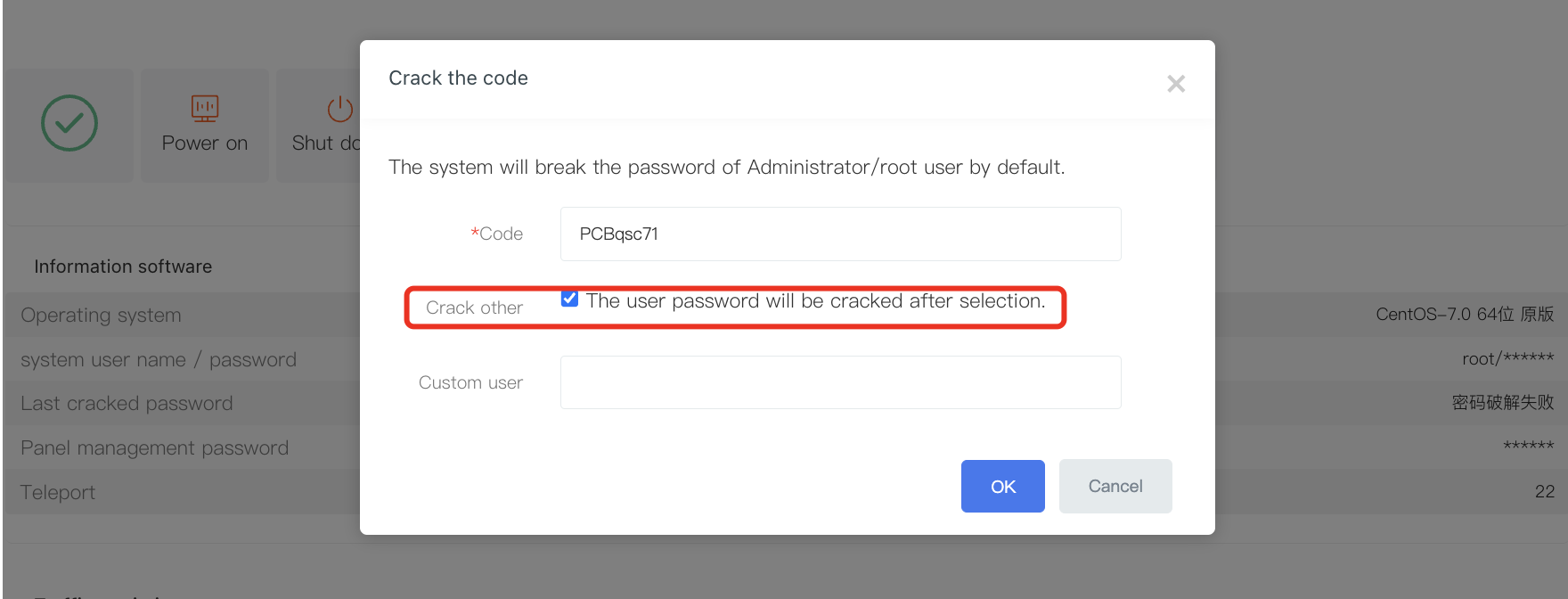
After the "Crack the code" window opens, the system will reset the password for the default administrator account by default:
-
Administrator (Windows)
-
root (Linux, such as Ubuntu and CentOS)
In the "Password" field, enter the new password you want to set (a random password may be generated by default).
2. Reset a Custom User Password (Optional)
If you need to reset the password for a user other than the administrator, select the option in the "Crack Others" section:
-
"After selecting, the system will reset the password for a custom user"
Then specify the custom username to reset.
3. Confirm the Reset
Carefully check the new password. When ready, click "Confirm" in the lower-right corner of the window. The system will begin the password reset process.
After the reset is successful, go to "Information software" and click "*" to view the updated password.