
I. Obtain the Panel Management Password
Log in to the platform and go to the "Customer Center". Click "My Products", locate the target server, and open the "Product Details" page.
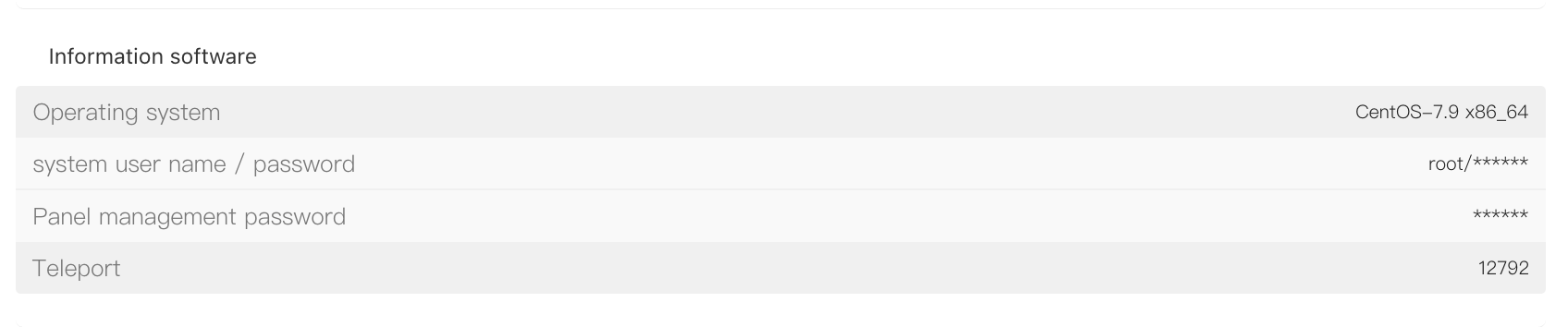
On the "Product Details" page, go to the "Server Information" tab. In the "Information software" section, find "Panel management password" and click the "*" icon to reveal the panel management password.
II. Log in to the DCIM Service Panel
Open a browser and visit https://dsclient.raksmart.com to access the DCIM service panel login page.
On the login page:
-
Username: enter the server’s "Primary IP"
-
Password: enter the "Panel management password" obtained earlier
Then click "Login" to sign in.
III. Server Operations
After logging in to the DCIM service panel, you can perform server actions such as "Power on", "Shut down", and "Restart", making it convenient to manage and maintain your server remotely.
