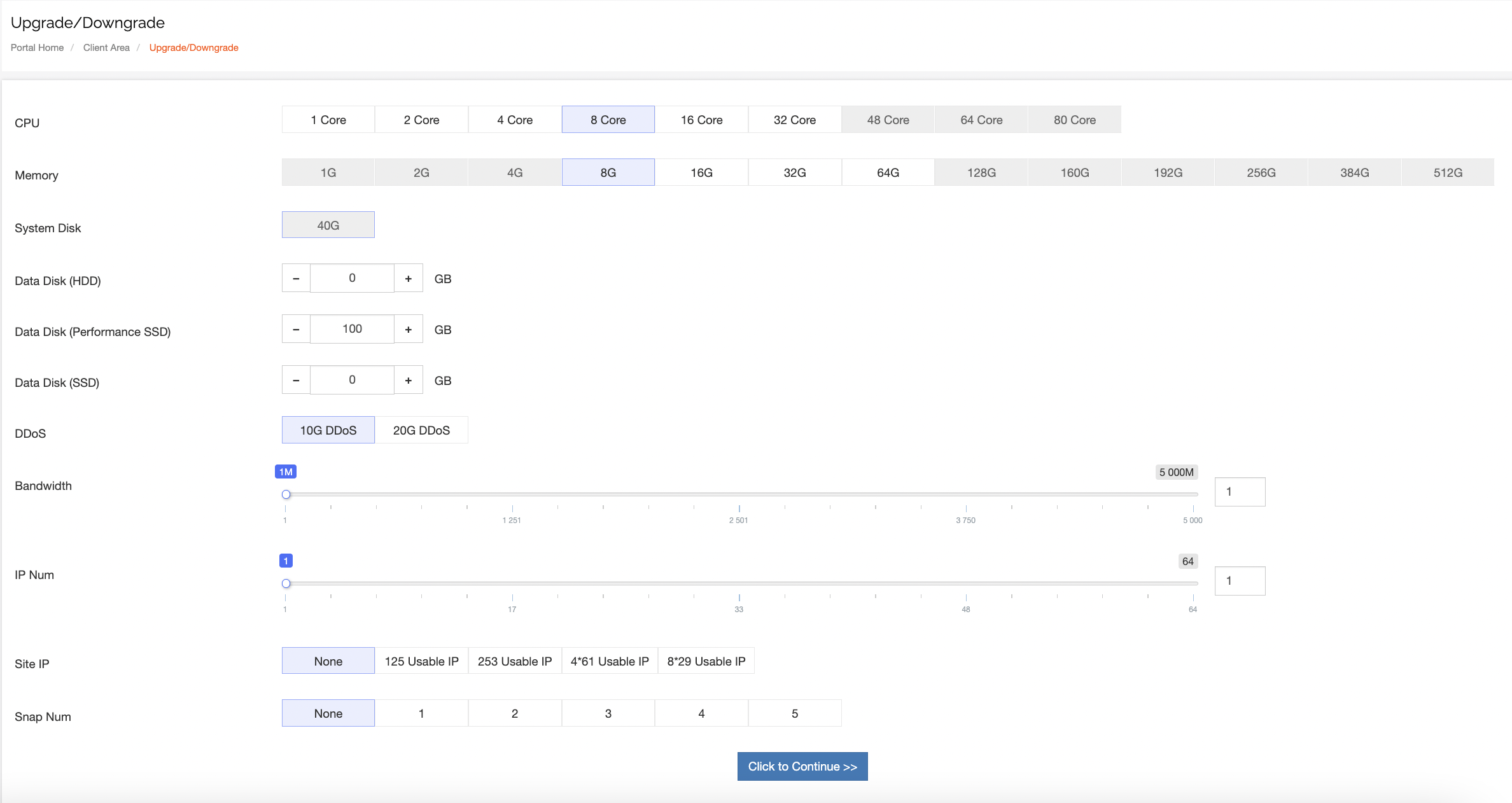
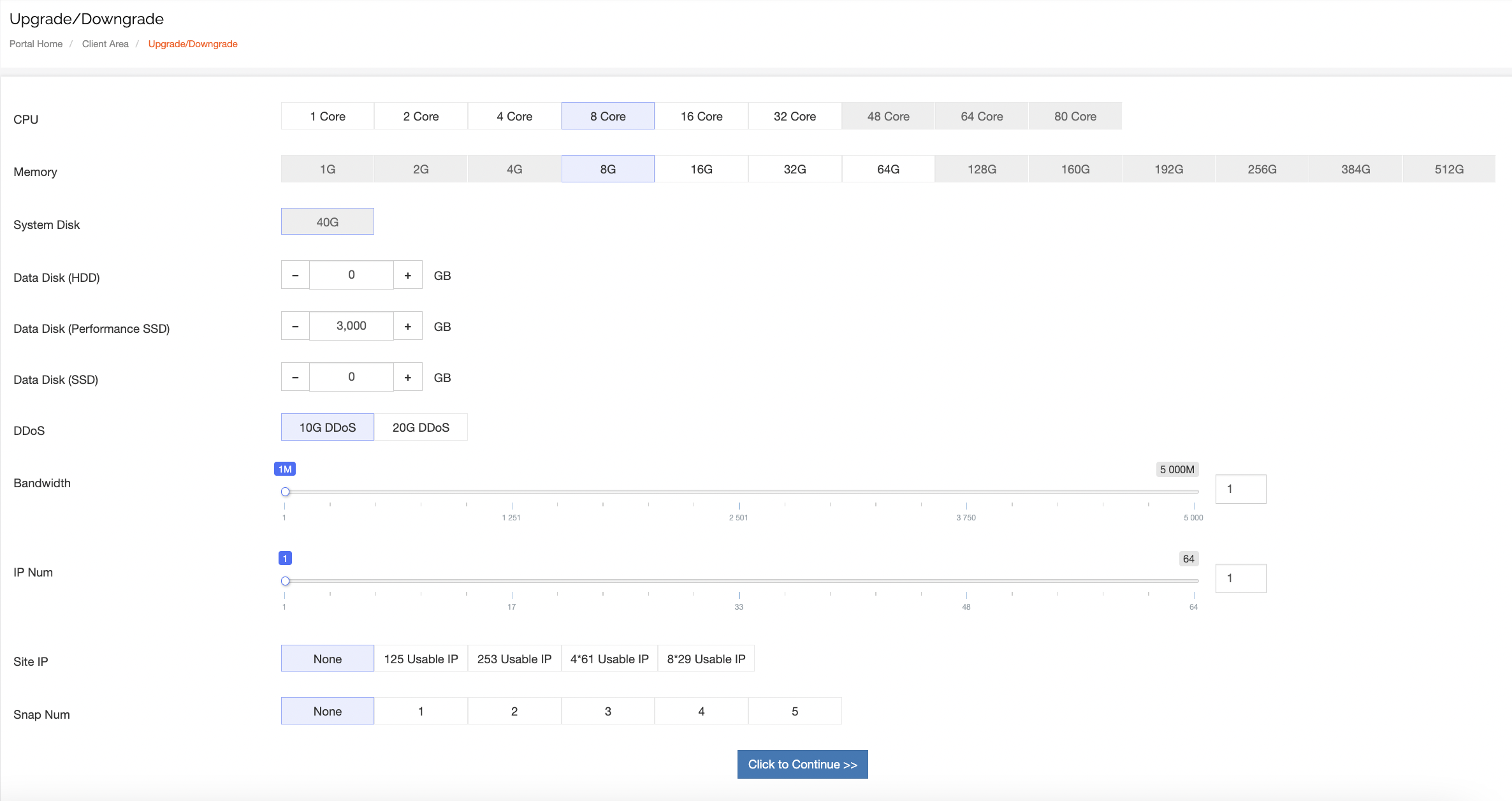
1.Select the machine to be operated through the customer backend for upgrade/downgrade operation. For specific operation methods, please refer to: Public cloud upgrade/downgrade operation: Public cloud upgrade/downgrade operation
2.For example: The current data disk is a solid-state drive (high efficiency) 100G, and its capacity is expanded from 100G to 3000G
3.Log in to the machine, currently taking centos7.9 system as an example
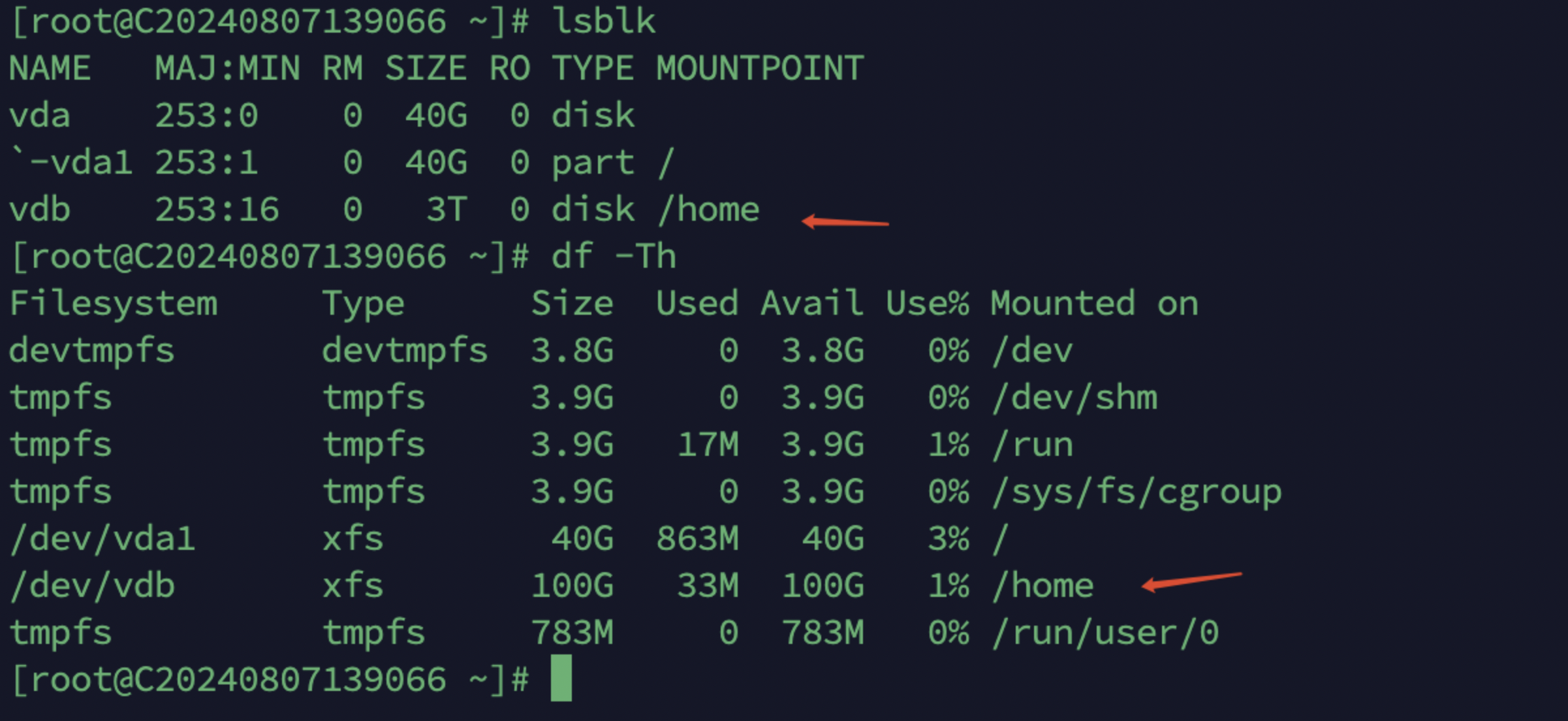
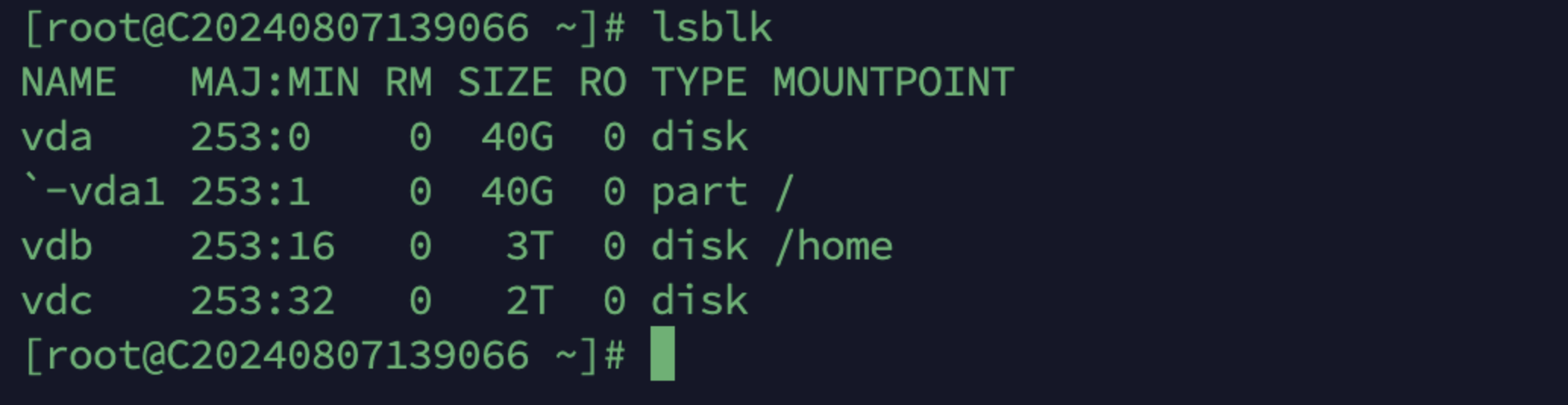
From the figure below, the data disk vdb has been expanded to 3T, but the mount point /home is still 100G
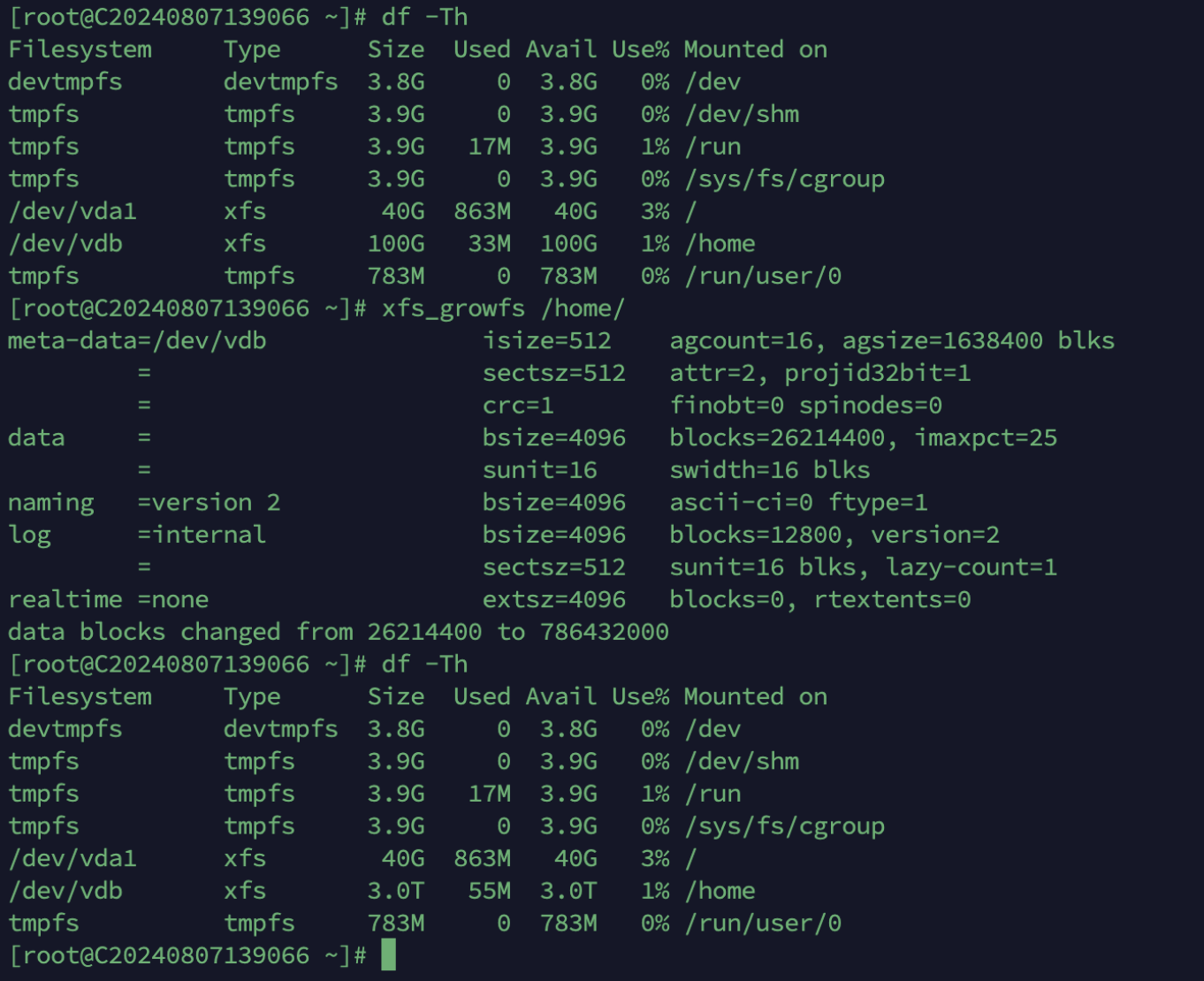
According to the file system format of the mount point, execute the command: xfs_growfs /home/, and check again that the expansion is complete.
Command usage scenario explanation:
Execute df -Th to check that xfs is the file system format of the mount point. Different formats require different commands.
xfs_growf #Expanding the xfs file system
resize2fs #Expanding the ext4 file system
4.The following are the references for adding a new hard disk to the cloud machine
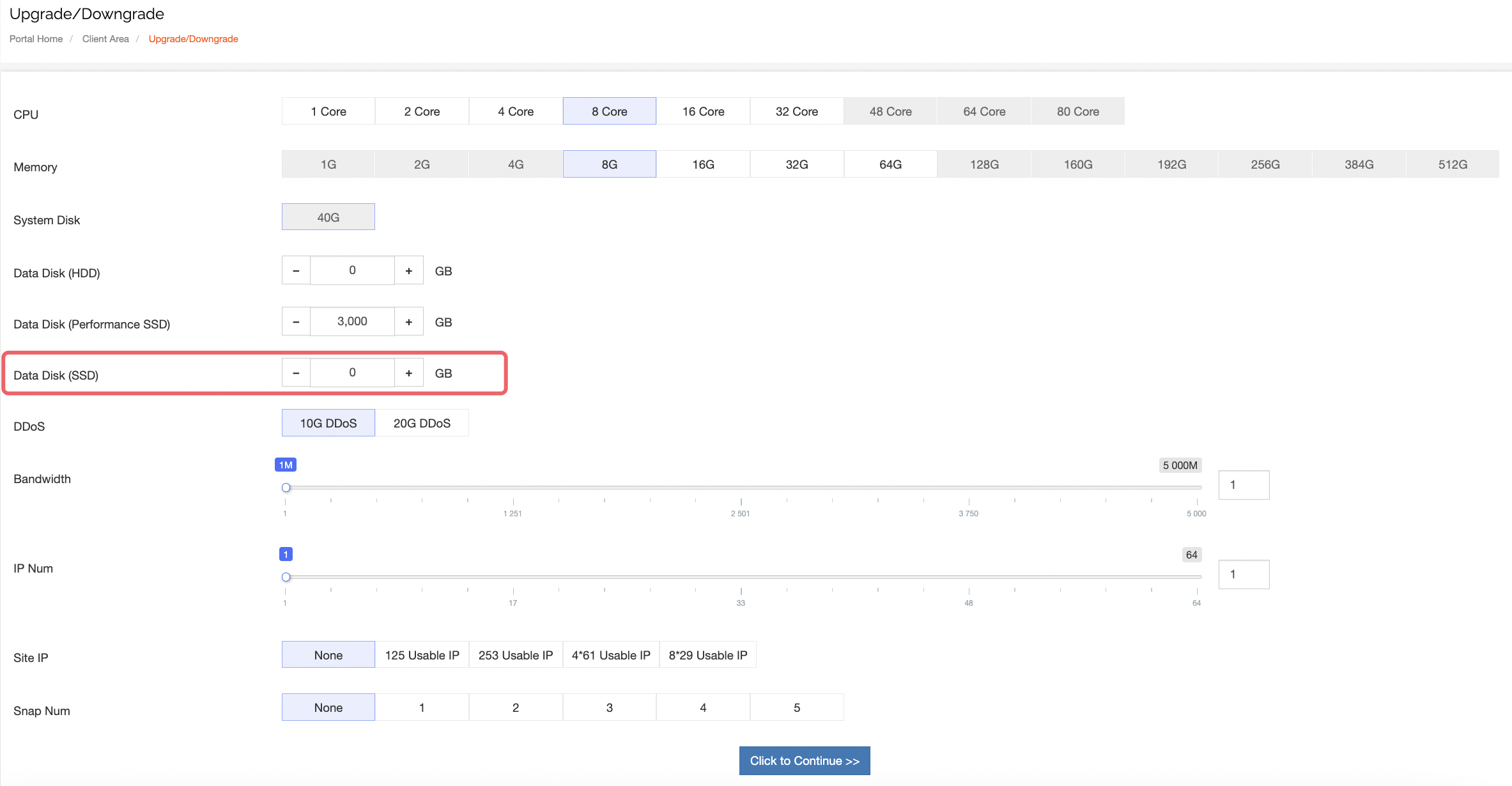
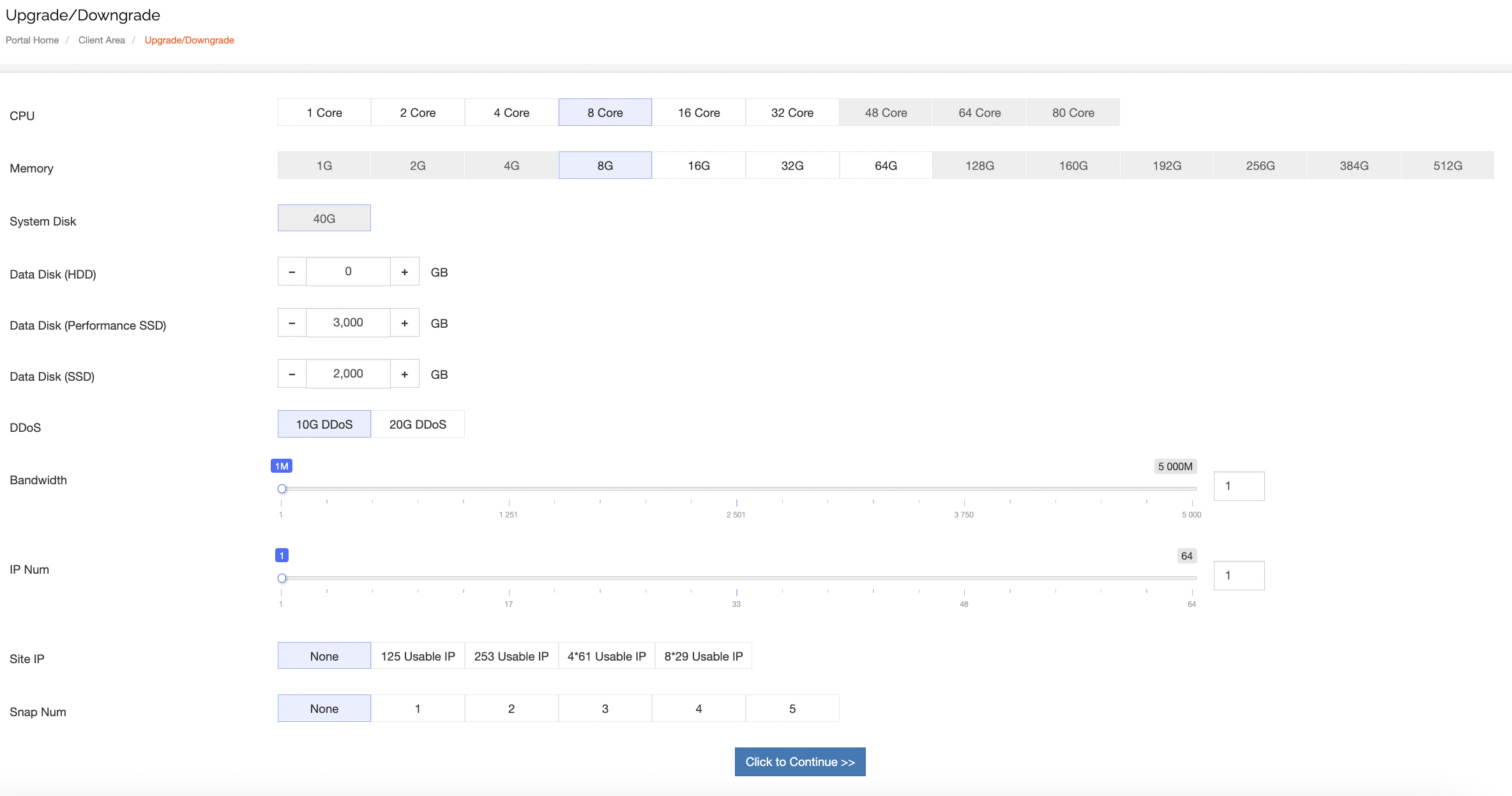
Note: When adding a new hard disk, you can only add different types of hard disks. Hard disks of the same type can only be expanded, not added
As shown in the picture, add a 2000G solid-state hard drive, log in to the machine to mount it after payment
5.Look at the figure below, you can see that the new hard disk vdc has been added and needs to be mounted
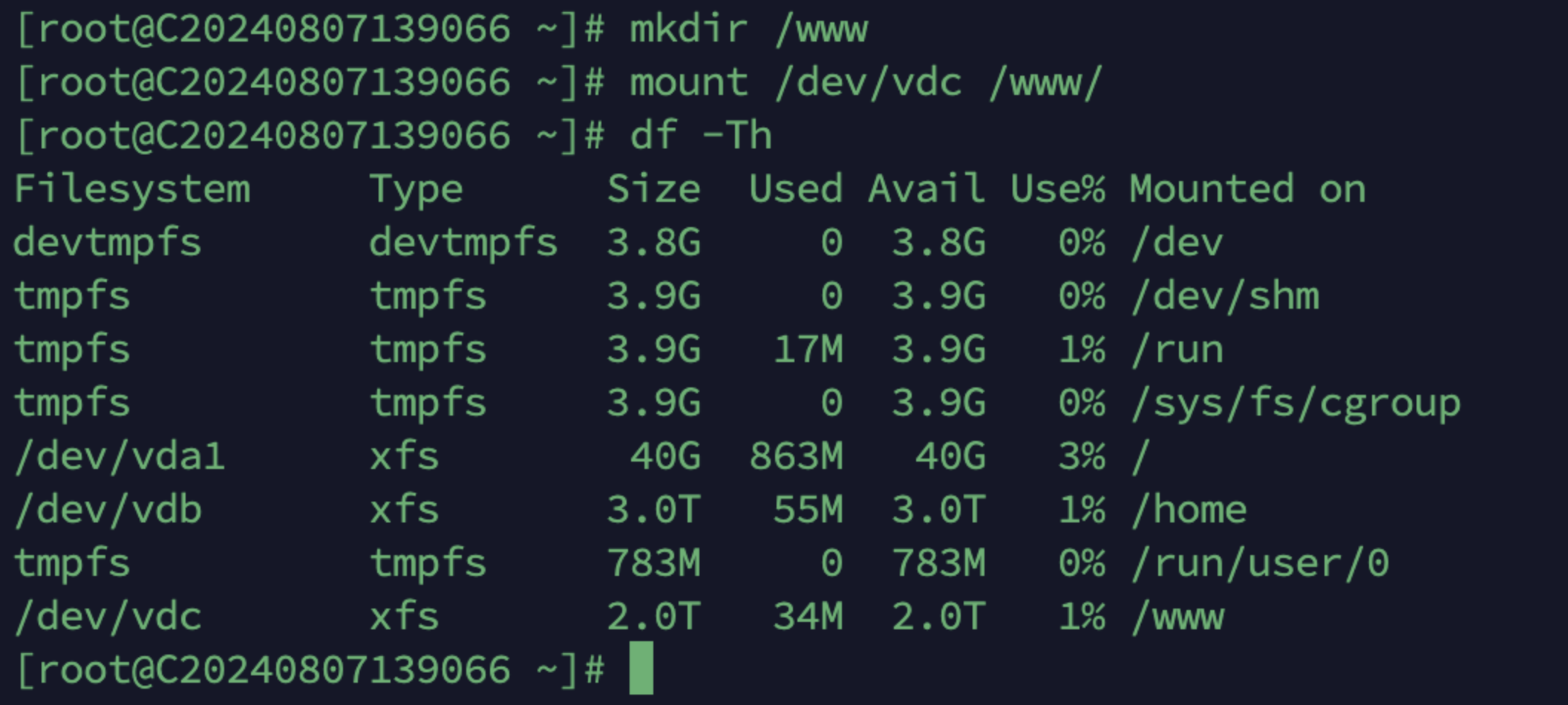
6.Create a mount point and execute the mount
mkdir /www #Create a mount point
mount /dev/vdc /www #Mount the vdc disk to /www
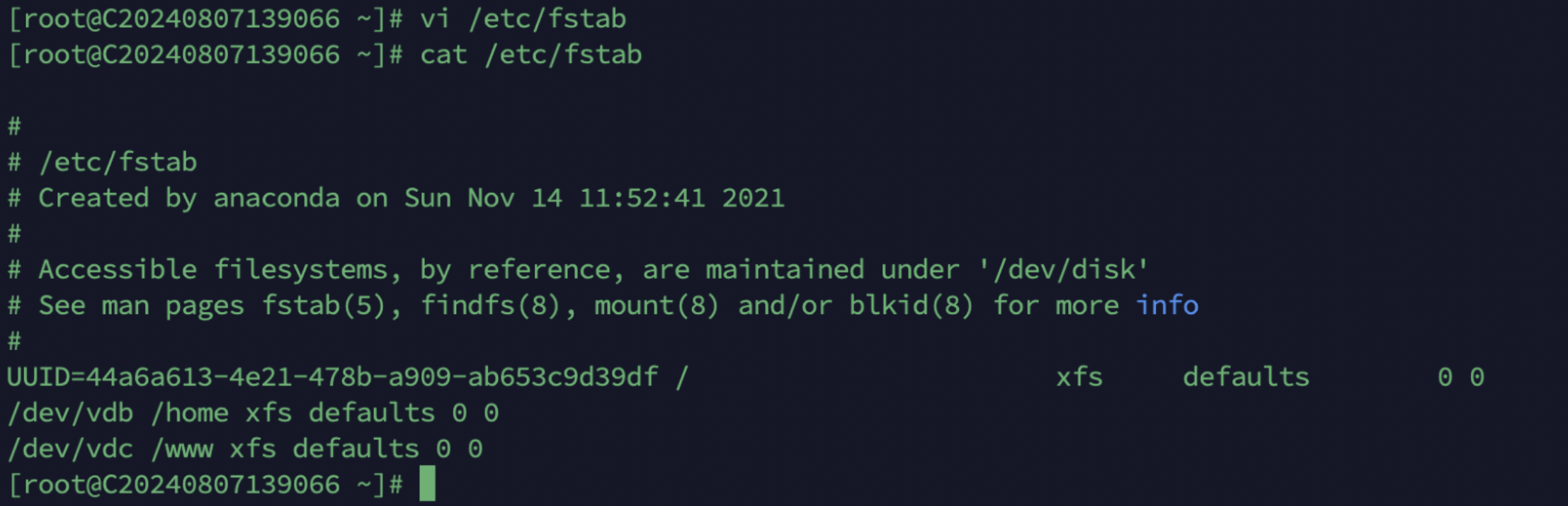
vi /etc/fstab #Set the boot-up automatic mount, and the writing format refers to the figure below