
Overview
After a domain has been activated, you need to configure DNS settings in the platform backend. This allows the domain to be linked to the target server or service, so users can access the corresponding website, application, or other content through the domain name.
1. DNS Configuration Process
There are two DNS configuration methods. You should choose the appropriate one depending on your domain setup to ensure the records take effect correctly.
Access Path
Go to:
Product Management → Domains & Websites → Domains
View your domain list
Click “Details” on the right to enter the management panel
Method 1
Verification Notes
After the domain is activated, verification is required.
Please check your email inbox after placing the order, including the spam folder, and complete the verification promptly to ensure normal use of the domain.
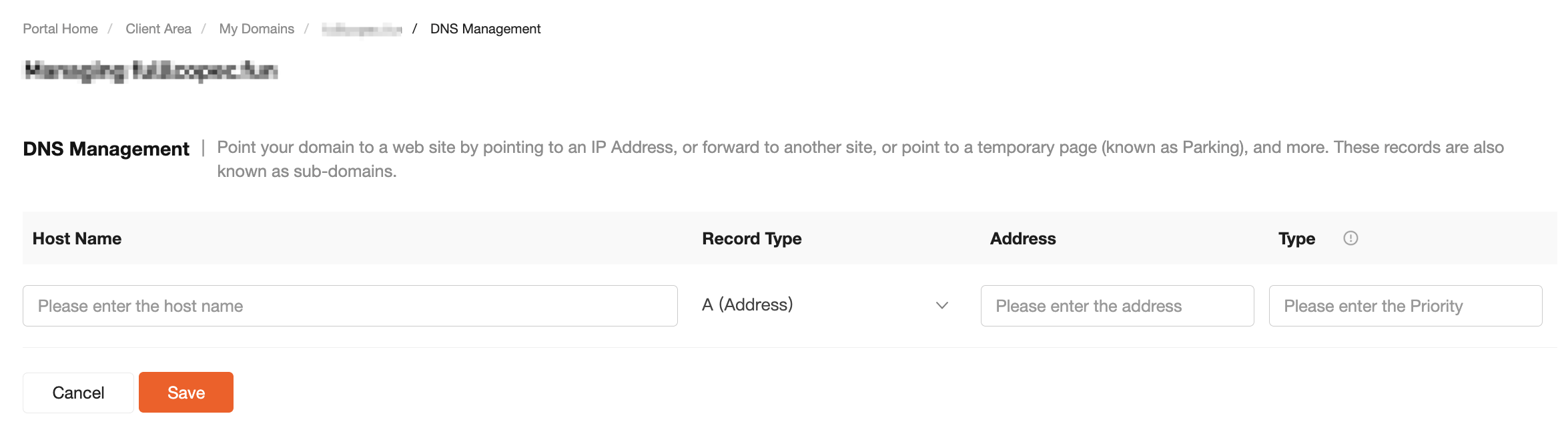
Root Domain (Primary Domain)
Leave Hostname empty (or use @ if saving fails)
Enter the target IP address (e.g., 192.168.1.1)
This maps:
Example Domain → IP
If saving fails when the hostname is left blank, enter @ as the hostname and save again.
Subdomain
Enter hostname prefix (e.g., www)
Enter target IP
This maps:
www.example.com → IP
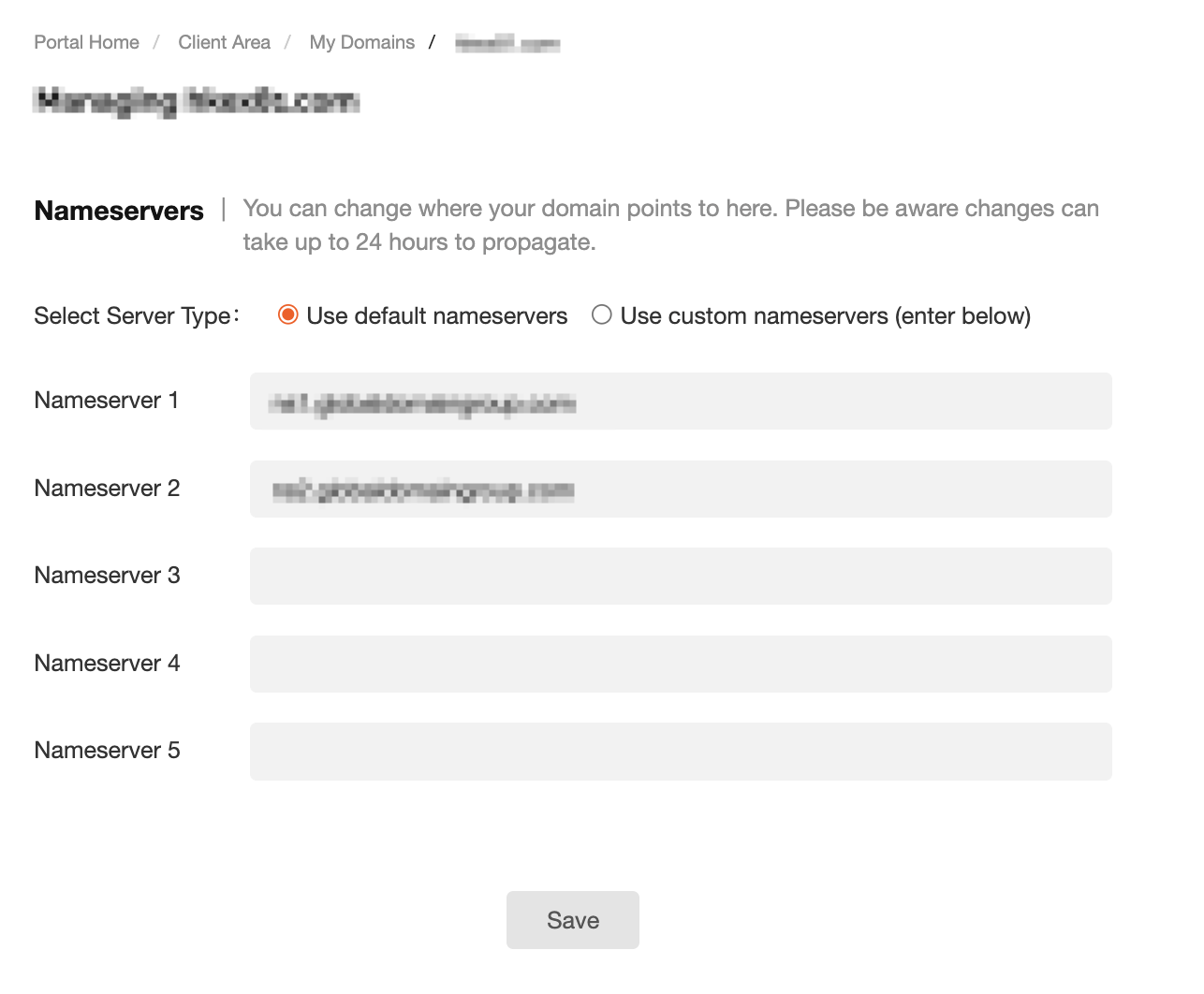
Nameservers
Use the default nameservers
Method 2
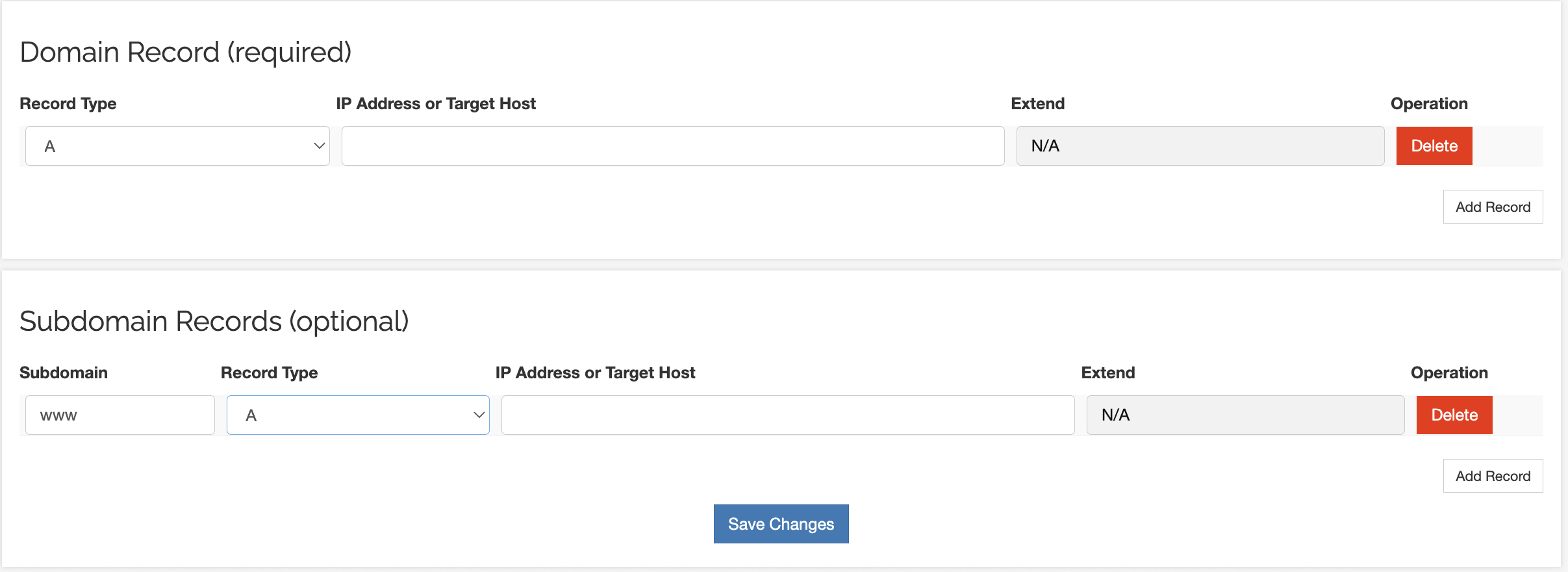
Root Domain
Record type: A
Enter target IP (e.g., 192.168.1.1)
Subdomain
Hostname: prefix (e.g., www)
Record type: A
Enter target IP
Save Configuration
Click “Save” after completing setup.
DNS propagation may take 24–72 hours to fully take effect.
2. DNS Record Types
A Record
Maps a domain to an IPv4 address.
Example:
Example Domain → 192.168.1.10
AAAA Record
Maps a domain to an IPv6 address.
Example:
Example Domain → 2001:db8::1
CNAME Record
Maps a domain alias to another domain.
Example:
www.example.com → Example Domain
Note: A CNAME record cannot coexist with an A record for the same hostname.
Forward
Forwards requests for a domain to another URL.
The browser address bar will display the redirected URL.
Example:
old-site.com → https://new-site.com/page
Stealth Forward
Keeps the original domain visible while loading content from another site, similar to an iframe.
TXT Record
Stores text data for verification or configuration.
Common uses:
Domain ownership verification
Email authentication (SPF, DKIM)
Example:
v=spf1 include:_spf.google.com ~all
MX Record
Defines mail servers for receiving emails.
Example:
Example Domain → mail.example.com
MXE Record
Allows email to be delivered directly to a server IP without complex configuration.
It automatically creates a special MX record.
SPF Record
SPF is an anti-spam mechanism and is a type of TXT record.
It specifies which servers are allowed to send emails for your domain.
URL Redirect
Redirects a domain using HTTP 301/302.
URL Frame
Embeds another website inside your domain using a frame-based display.
3. Important Notes
Accuracy of Records
Ensure hostname and IP values are correct.
Misconfiguration may cause:
Domain not resolving
Website inaccessible
Propagation Time
DNS changes require global synchronization.
This may take 24–72 hours.
Temporary inconsistency is normal.
You can verify using:
nslookup Example Domain
ping Example Domain
Nameserver Changes
Old DNS records will gradually become invalid.
Ensure new nameservers have the correct records configured.
Prevent service interruption.
Domain Verification
Complete verification promptly.
Unverified domains may have DNS resolution suspended, which may affect accessibility.