
Physical Server Control Panel

I. Obtain the Panel Management Password

Log in to the platform and go to the "Customer Center". Click "My Products", locate the target server, and open the "Product Details" page.

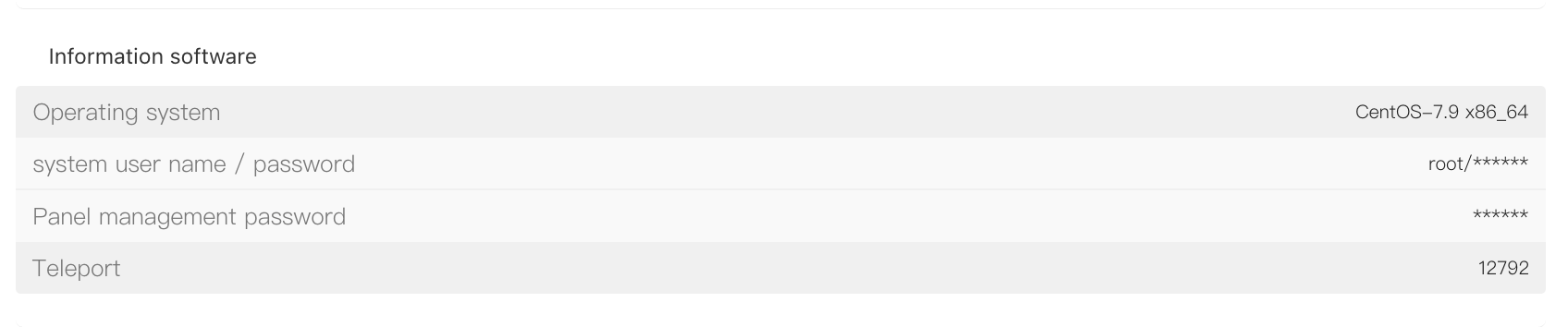
On the "Product Details" page, go to the "Server Information" tab. In the "Information software" section, find "Panel management password" and click the "*" icon to reveal the panel management password.
II. Log in to the DCIM Service Panel

Open a browser and visit https://dsclient.raksmart.com to access the DCIM service panel login page.

On the login page:

  • Username: enter the server’s "Primary IP"

  • Password: enter the "Panel management password" obtained earlier

Then click "Login" to sign in.

III. Server Operations

After logging in to the DCIM service panel, you can perform server actions such as "Power on", "Shut down", and "Restart", making it convenient to manage and maintain your server remotely.

  • 0 Users Found This Useful
Was this answer helpful?

Related Articles

Checking the health status of dedicated server disks

For Windows systems: The Windows operating system comes with a built-in disk checking and repair...

Introduction to Management of Dedicated Server Control Panel

  一、The panel management display information is divided into four sections....

Formatting a physical server hard drive

1.Formatting the hard drive by entering rescue mode. Please refer to the method for entering...

"It is suspected that the physical server cannot boot properly due to the inability to recognize the hard drive.

1.When the server fails to boot into the operating system, you can view the specific error...

Description of the issue: No response with rescue mode for physical server

1.After locating the corresponding server, click on 'Rescue Mode'.    2.Find 'Rescue System:...