
QtScrcpy Cloud Phone Screen Mirroring & Control Guide
Disclaimer: The group control software (QtScrcpy) mentioned in this tutorial is third-party software. It is neither a self-developed product of RakSmart nor a product provided by any RakSmart partner, and it has no affiliation with RakSmart. RakSmart does not charge any fees for this software. Whether to use this software is entirely your own decision. If any issues occur after using this software, including but not limited to device failure, data loss, or business interruption, RakSmart shall not bear any compensation liability or other related legal responsibility. All such responsibilities are unrelated to RakSmart.
This document is for reference only. For detailed operation tips, please refer to:https://blog.csdn.net/rankun1/article/details/87970523
1. Software Overview
QtScrcpy is an open-source Android device real-time display and control tool. It supports connecting to cloud phones through USB or network to enable screen mirroring and control. Its core advantage is that it does not require device ROOT access and is lightweight and easy to use.
If you have more advanced screen mirroring needs, such as bulk group control or advanced operations, you may try QuickMirror, a tool developed by the same author.
Download and tutorial: https://lrbnfell4p.feishu.cn/docx/QRMhd9nImorAGgxVLlmczxSdnYf
Download URL: QuickMirror
Download password: fmoz
QtScrcpy project page: GitHub - barry-ran/QtScrcpy
2. Prerequisites
Make sure ADB connection is enabled on the cloud phone. You can enable it in the cloud phone management panel or in the system settings. The exact path may vary depending on the cloud phone system version.
Obtain the cloud phone’s network connection IP address and ADB port number. These are usually available under “Network Information” or “ADB Settings”.
3. Steps for Windows
Step 1: Download and Install the Software
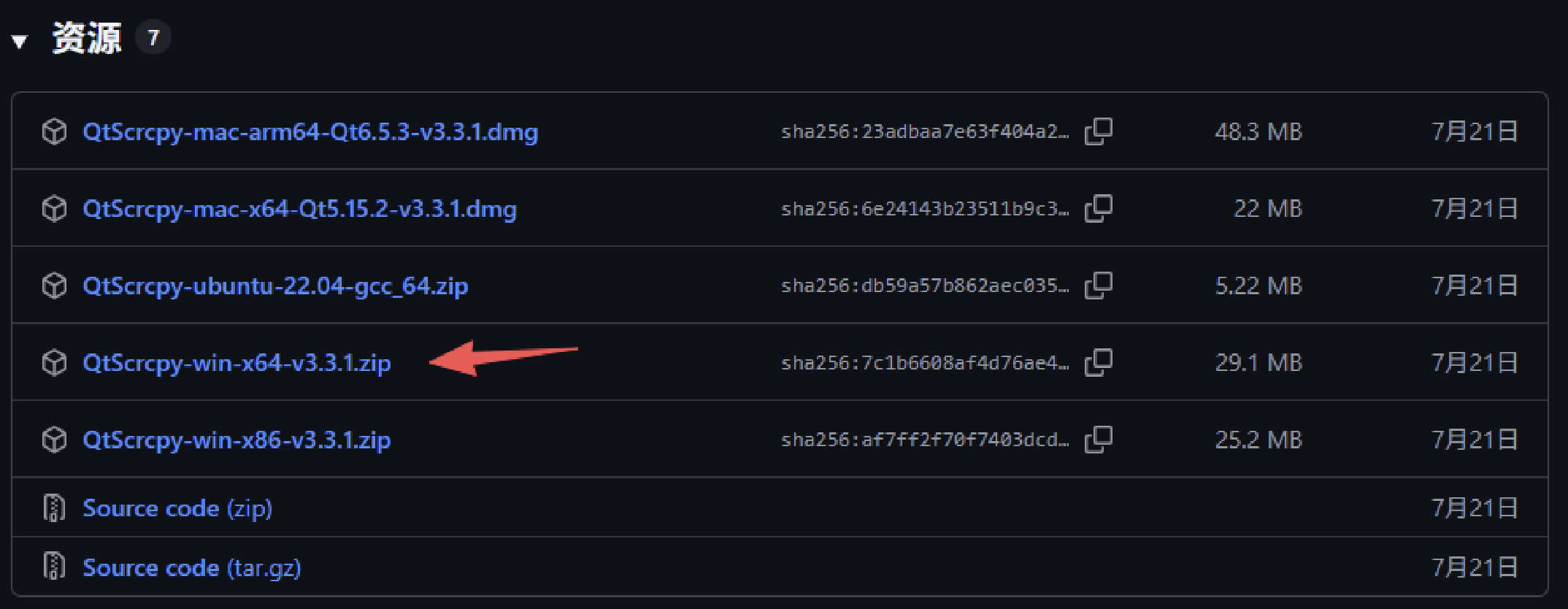
Visit the QtScrcpy GitHub Releases page: Releases · barry-ran/QtScrcpy
In the latest release assets, find and download the Windows “win-x64” package, usually a compressed file such as “QtScrcpy-win-x64-vxxx.zip”.
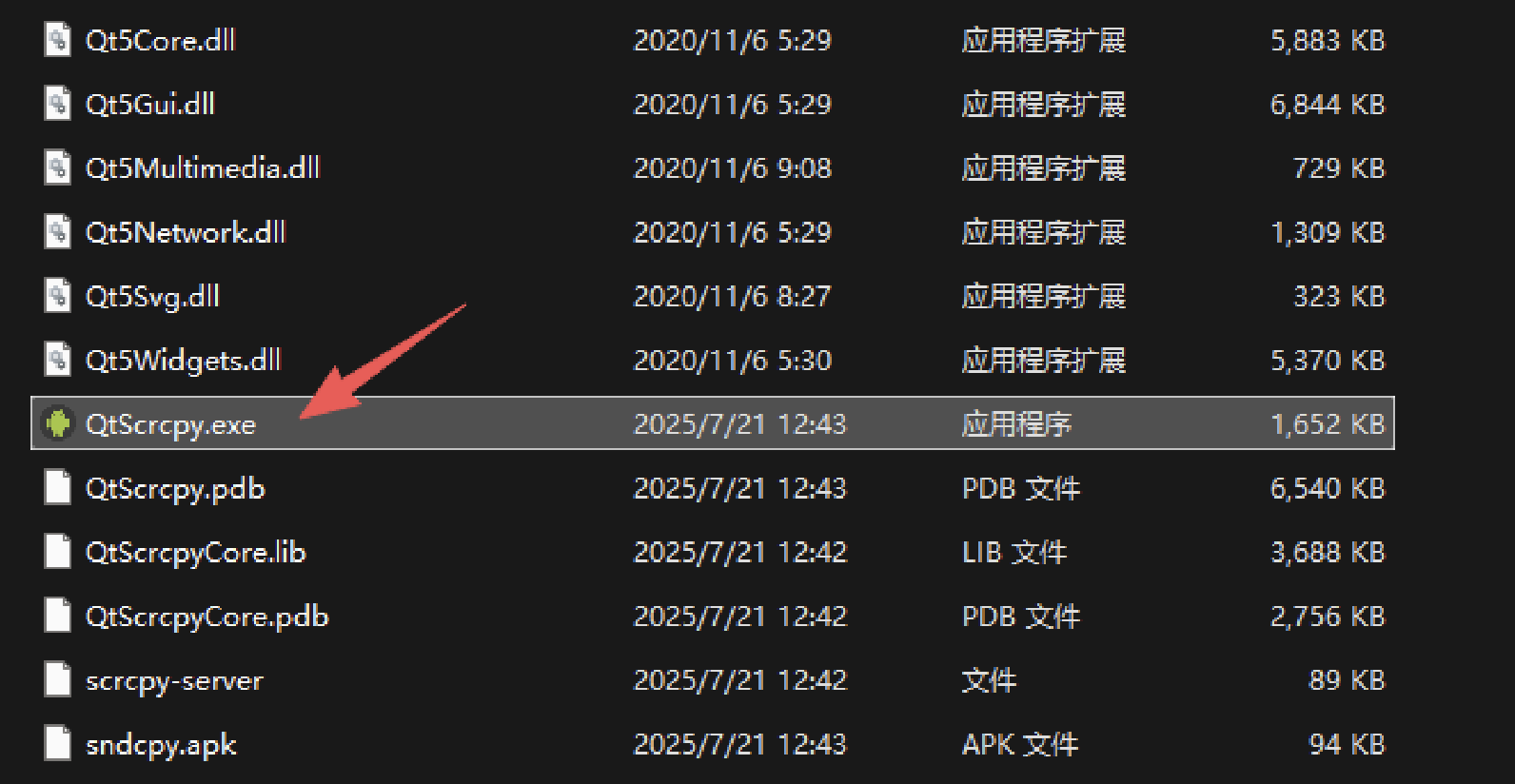
Extract the downloaded package to any local directory, open the extracted folder, and double-click “QtScrcpy.exe” to launch the software.
Step 2: Connect to the Cloud Phone Over the Network
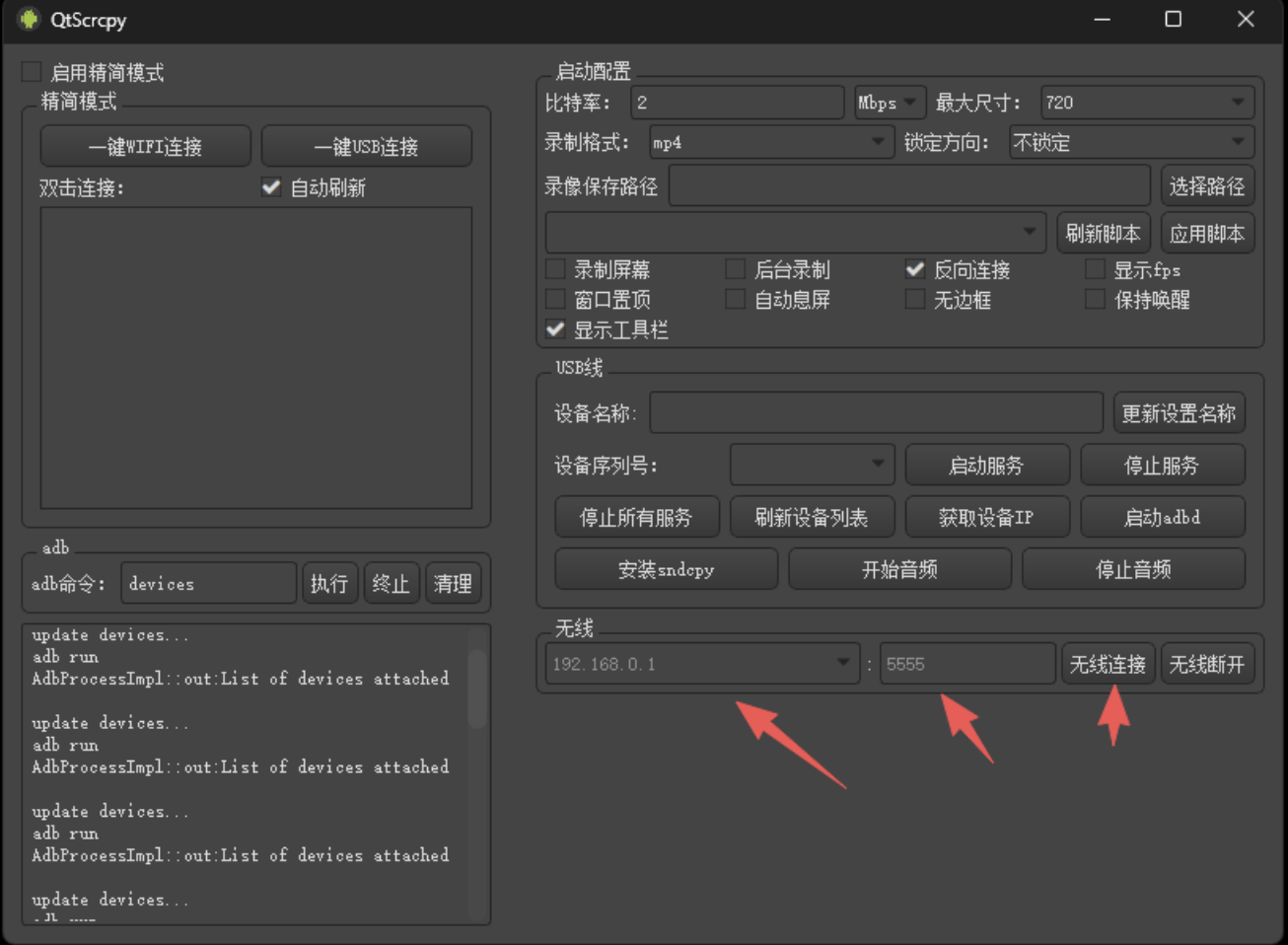
After launching QtScrcpy, find the “Wireless” section in the lower-right corner of the main interface.
Enter the cloud phone IP address and ADB port number you obtained earlier in the input field. Example format: 192.168.1.100:5555
Click the “Connect” button. If the cloud phone ADB function is working normally and the network connection is available, the software will automatically establish the connection and display the cloud phone screen.
Step 3: Operation and Control
After the connection is established successfully, you can use your mouse and keyboard to operate the cloud phone directly, including clicking, swiping, and text input. The operation logic is the same as on a physical mobile phone.
If you need to control multiple cloud phones in batches, you can repeat the steps above and establish a separate connection for each device.
